Mini PC vs Laptop Dock in 2026: Which Wins Your Desk?
Mini PC vs laptop dock in 2026: we compare price, performance, upgrade paths and desk clutter to help you pick the right work-from-home setup.
Reader-supported: we may earn a commission from links on this page, at no extra cost to you. It never affects our picks. Learn more.
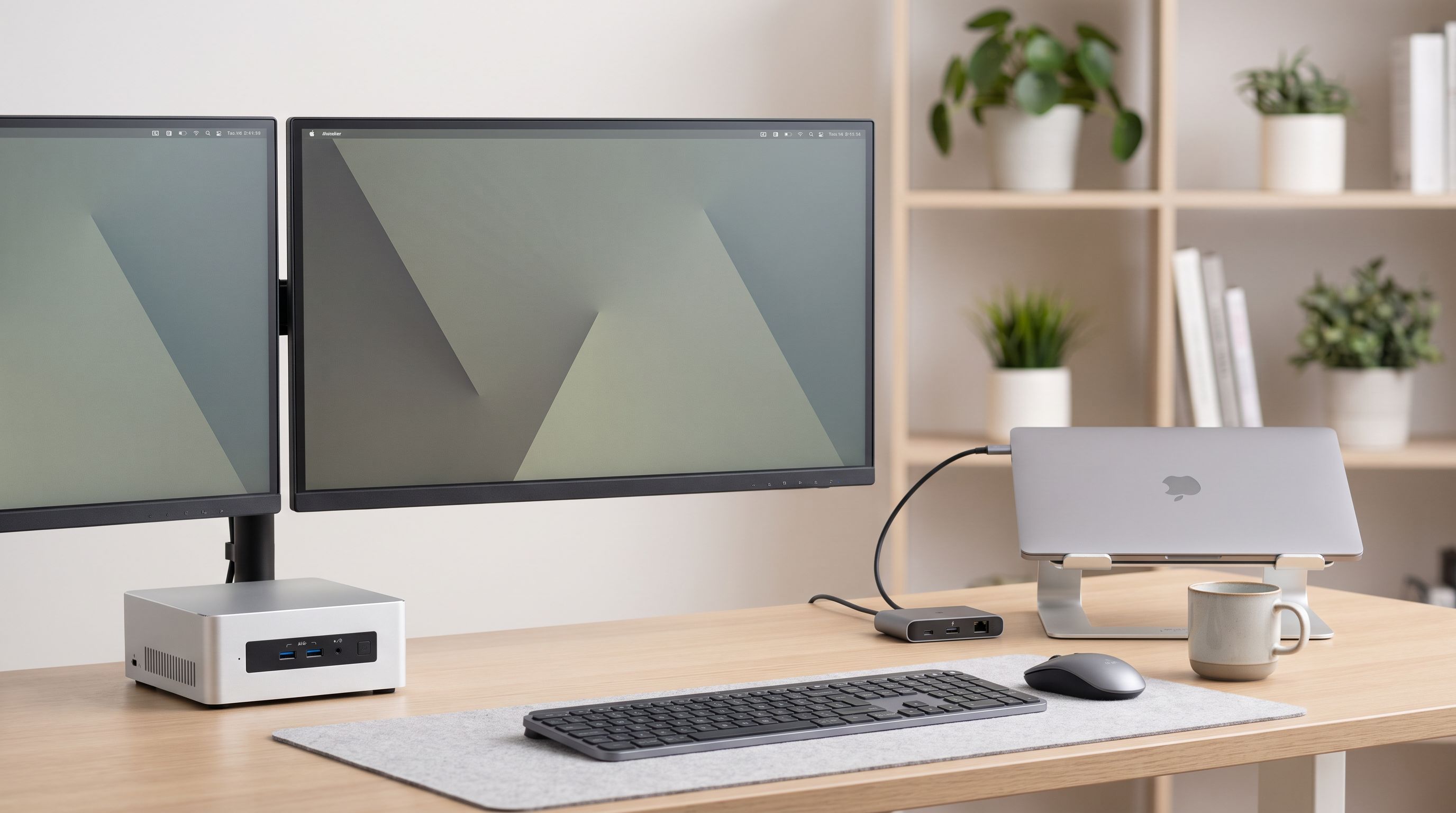
You already own a laptop. It lives on your desk 90% of the time, plugged into a monitor, plugged into power, plugged into a keyboard. So the question gets asked a lot in 2026: do you spend on a docking station to make that laptop a proper desktop, or spend roughly the same money on a cheap mini PC and leave the laptop free to be a laptop?
Both answers are defensible. The right one depends on how much CPU you actually need, how many devices you want to plug in, and whether you care about upgrading anything two years from now. We compared current mini PCs and docks on specs, port counts, expansion and total desk cost — here's how it shakes out.
The short version
- Buy a dock if your laptop is already fast enough and your pain point is cables, monitors and peripherals.
- Buy a mini PC if your laptop is thermally throttled, ageing, work-owned, or you want a second machine that's always on.
- Buy both if you hot-desk between home and office and want zero friction at either end. It's not as extravagant as it sounds in 2026 — a budget mini PC and a mid-range USB-C dock together can cost less than a single high-end Thunderbolt 5 dock.
Price: the thing that surprises people
A few years ago, "mini PC" meant an overpriced barebones kit. That's over. Entry-level Ryzen 5 and Ryzen 7 mini PCs from GMKtec, Beelink and Minisforum now ship fully built with RAM, SSD and Windows preinstalled, and they routinely land below the price of a premium Thunderbolt 4 dock like the CalDigit TS4.
That's the uncomfortable truth for docks: a good one is not cheap. Thunderbolt silicon, high-wattage power supplies and 15+ ports add up. Cheap USB-C docks exist and many are fine, but the ones that reliably drive two 4K displays at 60Hz, deliver 85W+ to a laptop, and don't drop Ethernet under load tend to cost real money.
The counter-argument: a dock adds nothing to your electricity bill or your software licence count, and it has no CPU to become obsolete. A mini PC is a whole second computer to keep patched, backed up and secured.
Performance: where the laptop quietly loses
Here's the comparison people forget. A dock does not make your laptop faster. If you have a 15W ultrabook chip in a thin chassis, plugging it into a CalDigit TS4 gives you ports — it does not give you sustained multi-core performance, and in a closed-lid, docked position some laptops actually run hotter and throttle more.
Mini PCs with H-series or HX-series mobile chips — the Ryzen 7 8845HS in the Beelink SER8, for instance — sit in a chassis built around a single job: dumping heat from one component at a desk, with no battery and no thinness constraint. Sustained performance is usually meaningfully better than the same silicon class in a thin laptop. For video calls with background rendering, large spreadsheets, Docker containers or light photo work, that gap is noticeable.
Apple's Mac mini complicates things further. The M4 generation is quiet, extremely power-efficient and comfortably outpaces most mid-range Windows laptops on single-core work, which is what day-to-day office software actually leans on.
Upgrade paths: a real differentiator
This is the clearest win for mini PCs. Most laptops sold in 2026 have soldered RAM. Many have one M.2 slot. You are stuck with what you bought.
A good mini PC gives you back what the laptop took away:
- Two SO-DIMM slots — upgrade to 32GB or 64GB yourself
- Two M.2 2280 slots — add a second SSD for backups or a Linux install
- A removable Wi-Fi card in many models
- In some larger models, a 2.5" SATA bay
The Beelink SER8 is the clearest example of this philosophy; the GMKtec NucBox M6 offers a cheaper version of the same idea. A dock, by contrast, has exactly one upgrade path: buy a different dock.
 Budget pick · GMKtec NucBox M6 (Ryzen 5 6600H) — Check price on Amazon →
Docks do have a subtler form of longevity, though. A Thunderbolt 4 dock will keep working with your next three laptops. A mini PC is a sunk purchase tied to one machine's lifespan.
Ports, monitors and desk clutter
If your goal is "one cable to the laptop and everything springs to life", the dock wins outright — that's literally the product category. The CalDigit TS4 is the benchmark here: a large port count, front-facing USB and audio, SD readers, 2.5GbE on some configurations, and enough power delivery to charge a 16-inch laptop while driving displays.
Mid-tier USB-C docks like the Anker 568 cover the realistic home-office case — two displays, Ethernet, a few USB-A devices, power pass-through — for far less. The caveat is that non-Thunderbolt docks using DisplayLink or MST have limits on refresh rates and resolutions, and they lean on driver software. Check your laptop supports DisplayPort Alt Mode before you buy anything.
A mini PC sidesteps the whole question: its ports are native. Two HDMI, two USB4/Thunderbolt, Ethernet, a handful of USB-A — no dock chipset in the middle, no bandwidth negotiation, no driver surprises.
Side-by-side comparison
| Factor | Mini PC | Laptop dock |
|---|---|---|
| Typical outlay | Low to mid; budget models undercut premium docks | Wide range; Thunderbolt models are premium |
| Adds CPU/GPU power | Yes — desktop-class cooling, sustained clocks | No — your laptop's performance is unchanged |
| RAM/storage upgrades | Usually yes (SO-DIMM + M.2 slots) | None |
| Multi-monitor | Native outputs, no bandwidth sharing | Yes, but limited by dock chipset and laptop |
| One-cable convenience | N/A — it's a separate machine | Its entire reason to exist |
| Survives your next laptop | No, it's its own machine | Yes — carries over to new hardware |
| Extra admin (OS, updates, licences) | Yes | No |
| Works with a work-issued, locked-down laptop | Yes — keeps personal work separate | Depends on IT policy and drivers |
| Portability | Luggable in a bag; needs a screen | Stays on the desk |
| Idle power draw | Small but constant if left on | Minimal |
Which should you actually buy?
Choose a dock if: your laptop is under three years old and performs fine, you need SD card slots and lots of peripherals, your employer owns the laptop and you can't add machines, or you move between desks and want identical setups.
Choose a mini PC if: your laptop throttles, you want to stop cycling the laptop's battery and hinge every day, you need an always-on machine for backups or media, you want to keep work and personal computing separate, or you want upgradeable RAM and storage for once.
Choose both if: you want the laptop to stay a travel machine and the mini PC to be the workhorse — in which case a modest dock for travel and a capable mini PC like the Beelink SER8 or Mac mini M4 at the desk is the cleanest setup.
One last practical note: whichever route you take, budget for a monitor arm, a decent keyboard and a mouse. The single biggest ergonomic upgrade to a work-from-home desk isn't the computing box — it's getting the screen to eye level and your hands off a laptop keyboard.
FAQ
Does a docking station improve laptop performance? No. It adds connectivity, not compute. In some cases, running a thin laptop closed-lid on a dock slightly worsens thermals. A laptop stand with airflow helps.
Can a mini PC replace a laptop entirely? For desk work, yes. You'll need a monitor, keyboard and mouse, and you lose portability — though mini PCs are small enough to pack and plug into a hotel TV in a pinch.
Are cheap mini PCs reliable? Build quality varies by brand more than by price. Established names like Beelink, GMKtec and Minisforum have broad owner feedback and active firmware support. Check that the model ships with a licensed Windows install and that the manufacturer publishes BIOS updates.
Do I need Thunderbolt, or is USB-C enough? If you want two 4K displays at 60Hz, high-speed external SSDs and high-wattage charging through one cable, Thunderbolt is worth it. For a single 4K display plus Ethernet and USB peripherals, a well-reviewed USB-C dock like the Anker 568 is plenty.
Will a dock work with any laptop? Most modern laptops with USB-C DisplayPort Alt Mode will work, but charging wattage, display limits and Mac-specific multi-monitor restrictions vary. Always check the dock maker's compatibility list for your exact model before buying.
Our picks

Beelink SER8 Mini PC, AMD Ryzen 7 8845HS 24GB DDR5 1TB NVMe SSD
Ryzen 7 8845HS, dual SO-DIMM slots and two M.2 bays make it the most upgrade-friendly desk PC.
GMKtec M6 Ultra Gaming Mini PC Ryzen 5 7640HS Max 5.0GHz 16GB DDR5 1TB SSD
A cheap, genuinely capable six-core mini PC that often costs less than a Thunderbolt dock.
Apple Mac mini (M4)
Silent, tiny and fast enough for heavy multitasking, with Thunderbolt ports for multi-monitor work.

CalDigit TS4 18 Port Thunderbolt 4 Dock, 98W Charging, 3X TBT4 (40Gb/s), 3X USB-C + 5X USB-A (10Gb/s), 2.5GbE LAN, 8K@30Hz or 2X 6K@60Hz Displays, Mac/Windows/Chrome, Space Gray, 0.8m Certified Cable
18 ports and high laptop charging wattage — the most complete one-cable desk hub you can buy.
Anker 568 USB-C Docking Station (11-in-1)
Dual-display USB-C dock with Ethernet and solid power delivery for a fraction of Thunderbolt pricing.
Get the best tech deals in your inbox
Join the BytePlaza newsletter for hand-picked gadget deals and new buying guides. No spam, unsubscribe anytime.
Related reads
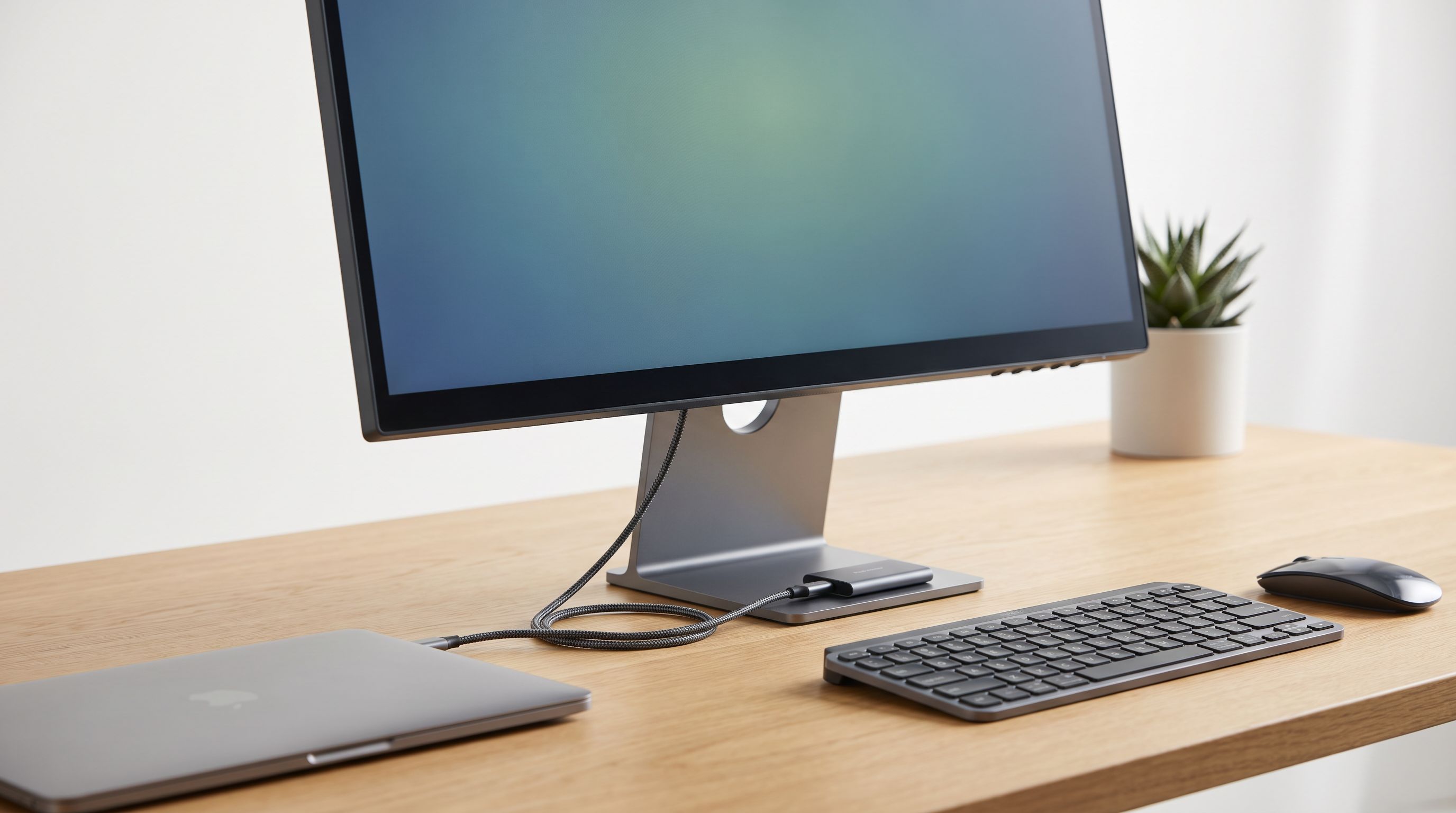
USB-C Monitor Hub 2026: One Cable, Zero Desk Clutter
A 2026 guide to USB-C monitor hubs and stand-mounted docks: which monitors have real built-in hubs, what PD wattage you need, and 4 picks that cut cable clutter.
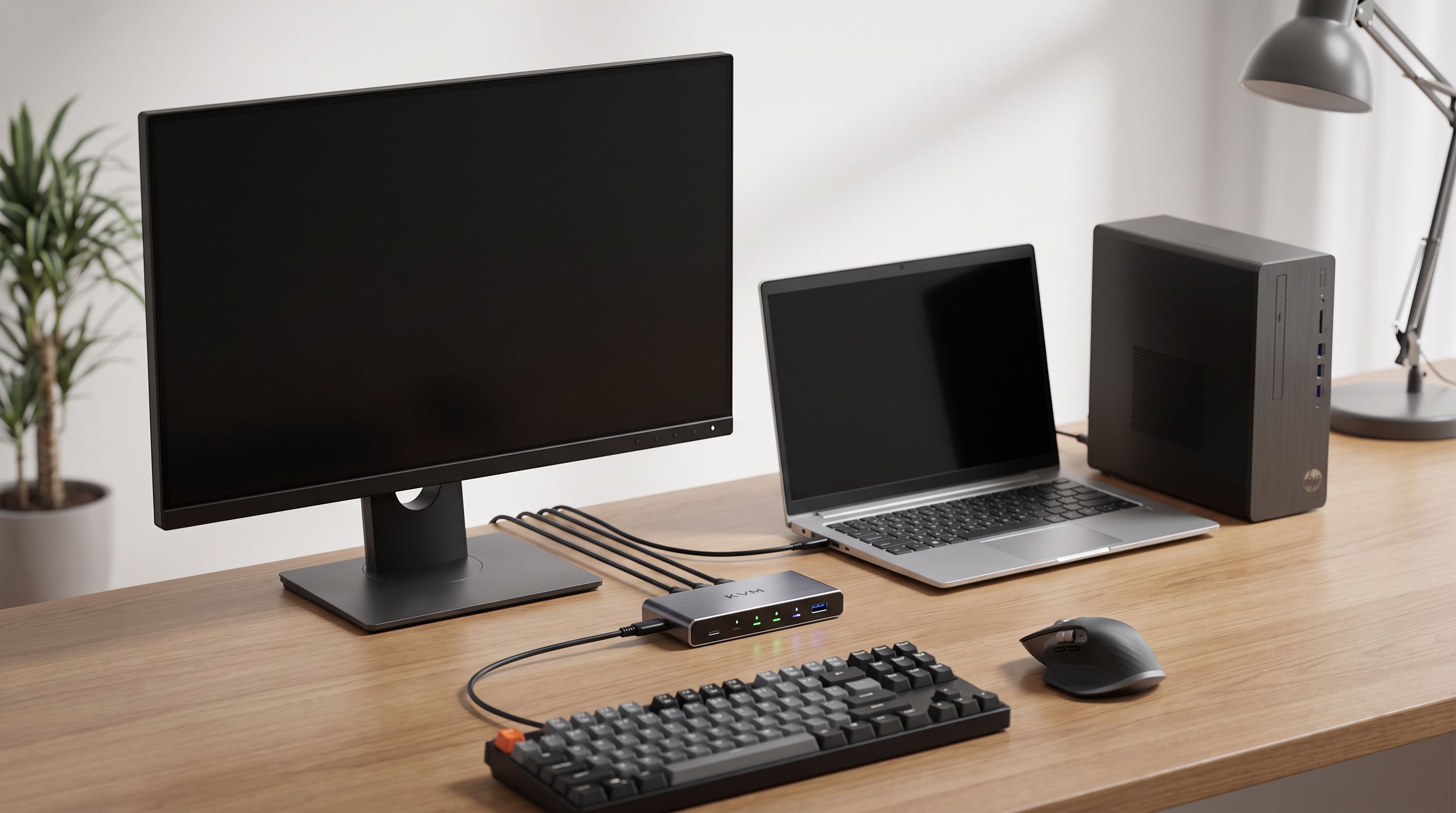
Which KVM Switch Should You Buy in 2026? Laptop + Desktop
The best KVM switch picks for 2026, from USB-C docking KVMs to 4K 144Hz DisplayPort models — how to run a work laptop and a personal desktop on one desk.
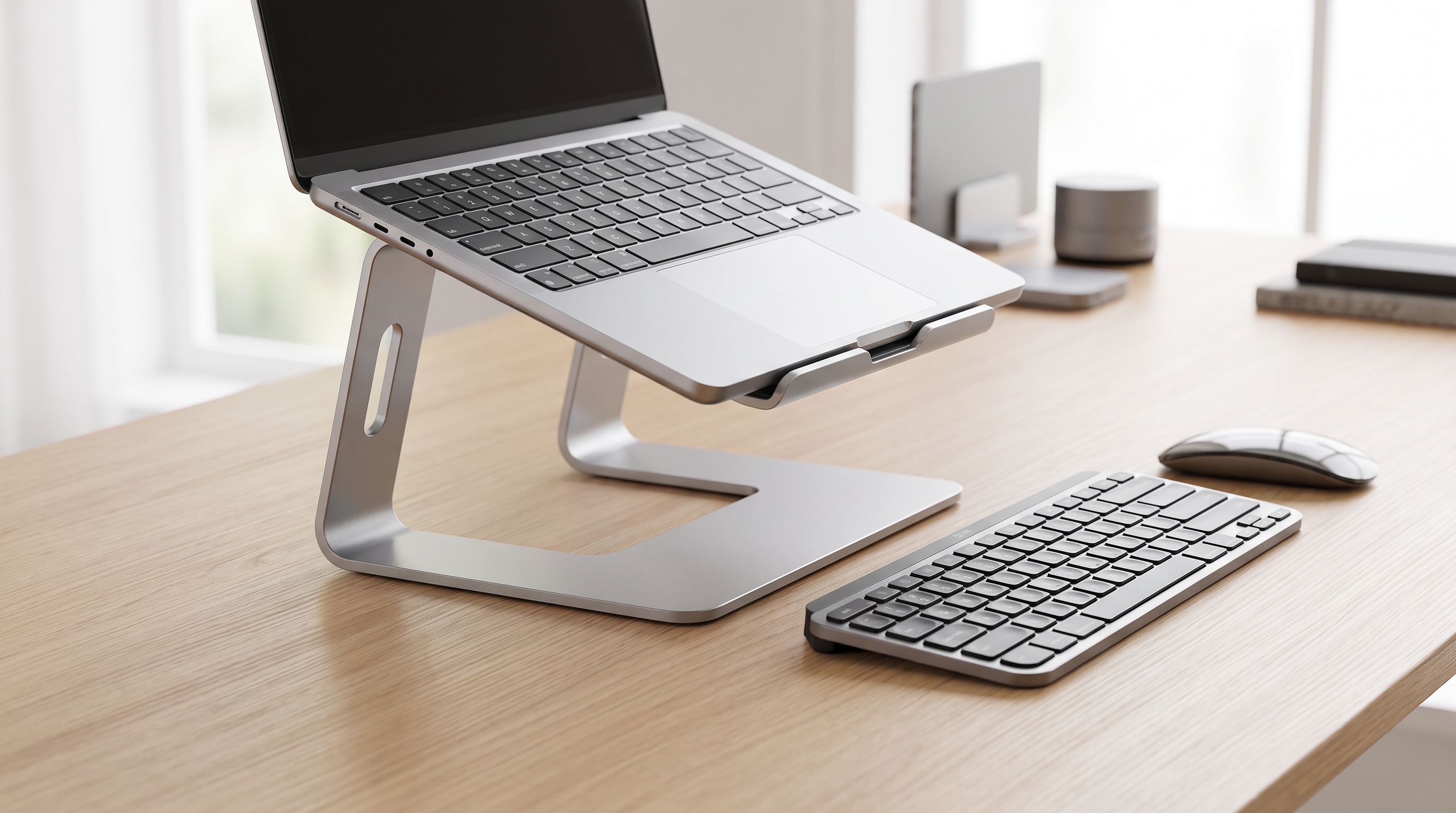
Laptop Stands in 2026: 5 Risers That Actually Fix Posture
The best laptop stand 2026 picks compared: aluminum risers, adjustable arms and travel-friendly folders, ranked by posture, cooling and desk footprint.