USB-C Monitor Hub 2026: One Cable, Zero Desk Clutter
A 2026 guide to USB-C monitor hubs and stand-mounted docks: which monitors have real built-in hubs, what PD wattage you need, and 4 picks that cut cable clutter.
Reader-supported: we may earn a commission from links on this page, at no extra cost to you. It never affects our picks. Learn more.
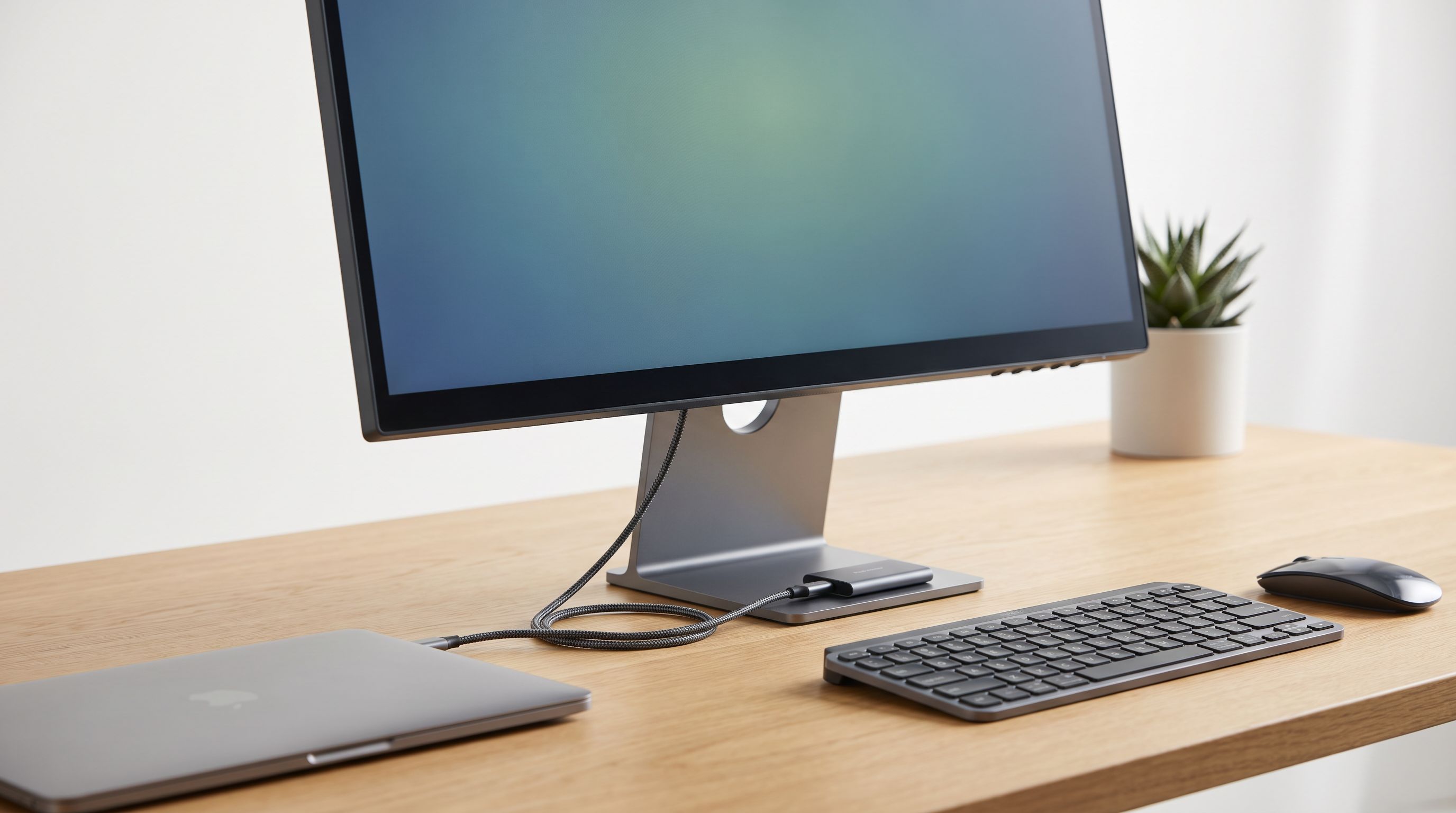
The one-cable desk is no longer a fantasy. Plug a single USB-C cable from your laptop into the right monitor and you get video, power, Ethernet, keyboard, mouse and external drives — all at once. Close the lid, push it aside, and your desk suddenly has room for a coffee cup again.
But "USB-C monitor hub" covers two different things, and the difference matters. Some displays include a real dock: high-wattage power delivery, a network jack, several downstream USB ports, often a second video output. Others have a token pair of USB-A ports on the back and 15W of charging that won't keep a MacBook Pro alive under load. Below we break down what to look for, and four setups worth considering in 2026 — including an add-on dock you can mount behind a stand if your current monitor isn't up to the job.
What a USB-C monitor hub actually has to do
A proper hub monitor handles four jobs over one cable:
1. Carry video. DisplayPort Alt Mode over USB-C. Nearly every modern USB-C display does this; the question is how much bandwidth is left for everything else. On older USB 3.2 Gen 1 connections, pushing 4K60 can force the hub down to USB 2.0 speeds. Displays with DisplayPort 1.4 DSC or Thunderbolt 4 avoid that compromise.
2. Charge the laptop. This is where cheap "USB-C monitors" fall apart. Ultrabooks are fine on 65W. A 14-inch MacBook Pro or a gaming-class laptop wants 90–140W. If the spec sheet says 15W or 65W and you have a power-hungry machine, you'll still be reaching for the laptop's own charger — which defeats the whole point.
3. Run the peripherals. Count the downstream ports and note where they live. Ports buried on the rear panel of a monitor are effectively permanent connections; ports on a side bezel or a chin flap are where you plug in a thumb drive or a headset. The best designs give you both.
4. Stay connected. An RJ45 jack on the monitor turns the display into your docking station for wired networking, which is still the most reliable way to join a video call.
Hub monitor vs. separate dock
| Hub monitor (built-in) | Separate USB-C dock | |
|---|---|---|
| Desk clutter | Lowest — no extra box | One more device, though it can be clamped out of sight |
| Power to laptop | Typically 65W–140W | Usually 85W–100W passthrough |
| Port placement | Fixed by the manufacturer | You choose where to mount it |
| Upgrade path | Replace the whole monitor | Swap the dock only |
| Dual-display support | Often via daisy-chain / DP out | Usually two HDMI/DP outputs |
| Typical cost structure | Premium built into monitor price | Lower entry cost, more flexible |
If you're already shopping for a new display, a hub monitor is the tidier answer. If you like the screen you have, an add-on dock mounted behind the stand gets you 90% of the benefit.
The picks
Best overall: Dell UltraSharp U2725QE
 Best overall · Dell UltraSharp U2725QE 27-inch 4K USB-C Hub Monitor — Check price on Amazon →
This is the model most reviewers point to when the subject comes up, and for good reason. It's a 27-inch 4K IPS Black panel — Dell's higher-contrast variant — paired with what is genuinely a docking station rather than a courtesy hub. You get Thunderbolt 4 upstream, substantial power delivery (enough for most 14-inch and many 16-inch laptops), Gigabit Ethernet, a stack of downstream USB-C and USB-A ports, and the ability to daisy-chain a second display off the same connection.
That last feature is the one people underrate. Two U2725QE panels linked over Thunderbolt means a single cable from a laptop drives both screens, charges the machine and carries the network. Reviews and owner feedback consistently flag the port cluster as the stand-out feature versus rival 4K panels, and the chin-mounted quick-access ports make day-to-day plugging less of an archaeology exercise. Colour accuracy is typical UltraSharp — very good for office and photo work, less relevant for gaming, since this is a 60Hz-class productivity panel.
Best 1440p pick: Dell UltraSharp U2724DE
 Best 1440p pick · Dell UltraSharp U2724DE 27-inch QHD USB-C Hub Monitor — Check price on Amazon →
Not everyone needs 4K. At 27 inches, 1440p stays sharp, demands far less GPU effort, and — crucially here — leaves more USB bandwidth free. The U2724DE carries essentially the same dock feature set as its 4K sibling (USB-C power delivery, Ethernet, a wide port array, daisy-chain support) but runs at a higher refresh rate than the usual office 60Hz, which makes general scrolling and window dragging noticeably smoother.
If your laptop is a mid-range ultrabook and you want one cable to do everything without buying a 4K panel you'll scale to 150% anyway, this is the sensible choice.
Best for office IT setups: HP E27u G5
HP's E-Series is built for the deploy-a-hundred-of-them crowd, and that shows in the practical details: QHD resolution, substantial USB-C power delivery, RJ45, and a USB hub with ports positioned for easy reach rather than hidden behind the panel. It's a conferencing-oriented model, so it's designed around laptops docking and undocking daily.
What you give up versus the Dell UltraSharps is the top-tier panel and Thunderbolt-grade bandwidth. What you get is a straightforward, widely-supported business display that does the single-cable job without fuss — and HP's commercial warranty terms are a real consideration for shared or hot-desk setups.
Best add-on dock: Anker 568 USB-C Docking Station
If your monitor is fine and only the ports are lacking, don't replace the screen. The Anker 568 is an 11-in-1 Thunderbolt 4 dock that can sit under the desk edge or tuck behind a monitor stand, giving you the same practical result: one cable to the laptop, everything else permanently connected. Thunderbolt 4 means you're not rationing bandwidth between a 4K display and an external SSD, and roughly 100W of charging covers the majority of laptops.
The trade-off against a hub monitor is honest: it's still a physical box with its own power brick. But it travels between desks, it survives a monitor upgrade, and it almost always offers more total ports than a display's built-in hub.
Budget pick: UGREEN Revodok Pro 313
Thunderbolt docks cost what they cost. If you mostly need more ports rather than maximum bandwidth, the UGREEN Revodok Pro 313 packs 13 connections — Ethernet, card readers, USB-A, HDMI, USB-C power passthrough — into a compact bus-powered-style unit that can be velcroed to the back of a monitor arm. It's the pragmatic answer for anyone running a single 1080p or 1440p external display who just wants their dongle pile to go away.
How to set it up properly
- Use the supplied cable, or a certified one. A charging-only or USB 2.0 cable will not carry video. For Thunderbolt 4 behaviour you need a Thunderbolt-rated cable.
- Check your laptop's port. Not every USB-C port supports DisplayPort Alt Mode. On Windows laptops in particular, one port may be data-only. Look for the DP or lightning-bolt icon.
- Budget your wattage. Monitor PD figures are the maximum available; peripherals drawing power from the hub reduce what's left for the laptop.
- Update the firmware. Dell, HP and Anker all ship dock/monitor firmware updates that fix wake-from-sleep and display-detection quirks. It's the single most common fix for "my monitor doesn't come back on."
- Mind the daisy-chain limits. Chaining two 4K displays off one port works, but the combined bandwidth may cap refresh rates. Check the manufacturer's supported configuration table before you buy the second panel.
FAQ
Will a USB-C monitor hub charge my MacBook Pro? It depends on the wattage. A 13- or 14-inch MacBook runs comfortably on 90W or more. A 16-inch under sustained load can draw beyond what most monitors provide, so it may charge slowly while you're working hard and catch up when idle. Look for 90W minimum, 140W ideally.
Can I connect two monitors through one USB-C cable? Yes, two ways. Daisy-chaining works if both displays support DisplayPort MST or Thunderbolt passthrough — the Dell UltraSharp models do. Alternatively, a dock like the Anker 568 provides two independent video outputs. Note that macOS on Apple silicon has historically limited MST daisy-chaining; a Thunderbolt dock is the safer route on those machines.
Is Thunderbolt worth paying extra for? If you move large files to external SSDs, run dual 4K displays, or want headroom for future hardware, yes. If you plug in a keyboard, mouse and webcam and nothing else, a standard USB-C hub will serve you just as well.
Do these work with an iPad or an Android phone? Generally yes — most USB-C hub monitors will display from a USB-C tablet or phone that supports DP Alt Mode, and will charge it at the same time. Ethernet and USB peripherals usually work too, though feature support varies by device.
My monitor already has USB-C — do I need a dock as well? Check the spec sheet first. If it lists 65W+ power delivery, Ethernet and three or more downstream ports, you likely don't. If it offers 15W and two USB-A ports, you have a USB-C input, not a hub, and an add-on dock is the better fix.
Our picks
Dell UltraSharp U2725QE 27-Inch 4K UHD IPS Black Monitor
IPS Black 4K panel with a genuine built-in dock: 140W PD, Thunderbolt 4, RJ45 and daisy-chaining.
Dell UltraSharp U2724DE 27-Inch Class WQHD LED Monitor
Same dock smarts as Dell's 4K model in a 120Hz QHD panel, with 90W PD and Ethernet built in.

HP Series 5 Pro 527pq 27" QHD IPS Monitor with 5ms Response Time
QHD business panel with 100W USB-C power, RJ45 and a USB-A hub on an easy-reach edge.
Anker 568 USB-C Docking Station (11-in-1, Thunderbolt 4)
Clamp it under a desk or behind a stand: Thunderbolt 4 speeds, 100W charging, dual-display output.
UGREEN Revodok Pro 313 USB-C Hub (13-in-1)
Thirteen ports including Ethernet and card readers for far less than a Thunderbolt dock.
Get the best tech deals in your inbox
Join the BytePlaza newsletter for hand-picked gadget deals and new buying guides. No spam, unsubscribe anytime.
Related reads
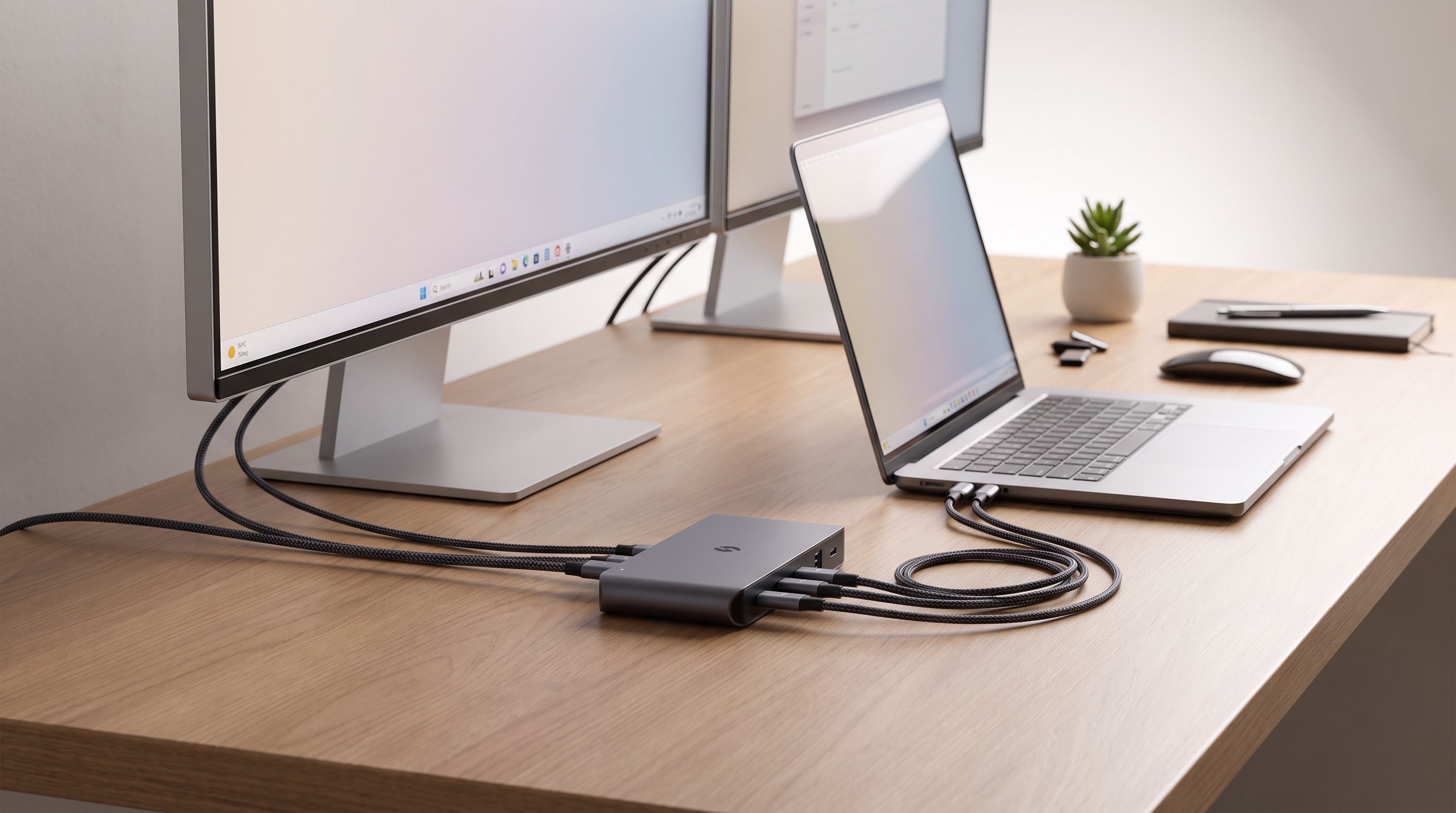
Thunderbolt 5 Hub in 2026: Who Actually Needs 80Gbps?
Thunderbolt 5 hubs promise 80Gbps and dual-8K displays. We compare the OWC, CalDigit, Kensington and Anker options — and when a cheaper TB4 dock still wins.
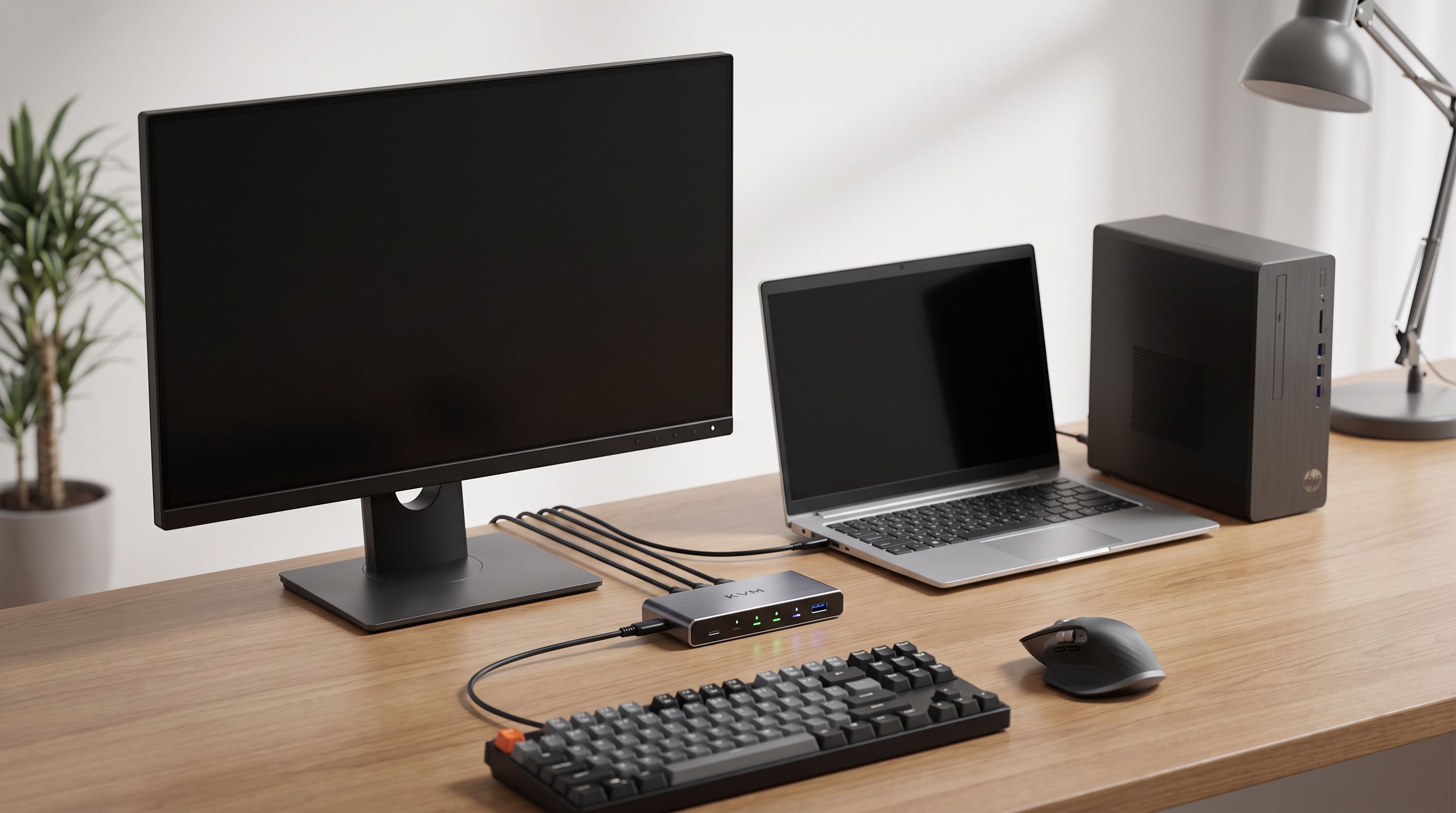
Which KVM Switch Should You Buy in 2026? Laptop + Desktop
The best KVM switch picks for 2026, from USB-C docking KVMs to 4K 144Hz DisplayPort models — how to run a work laptop and a personal desktop on one desk.
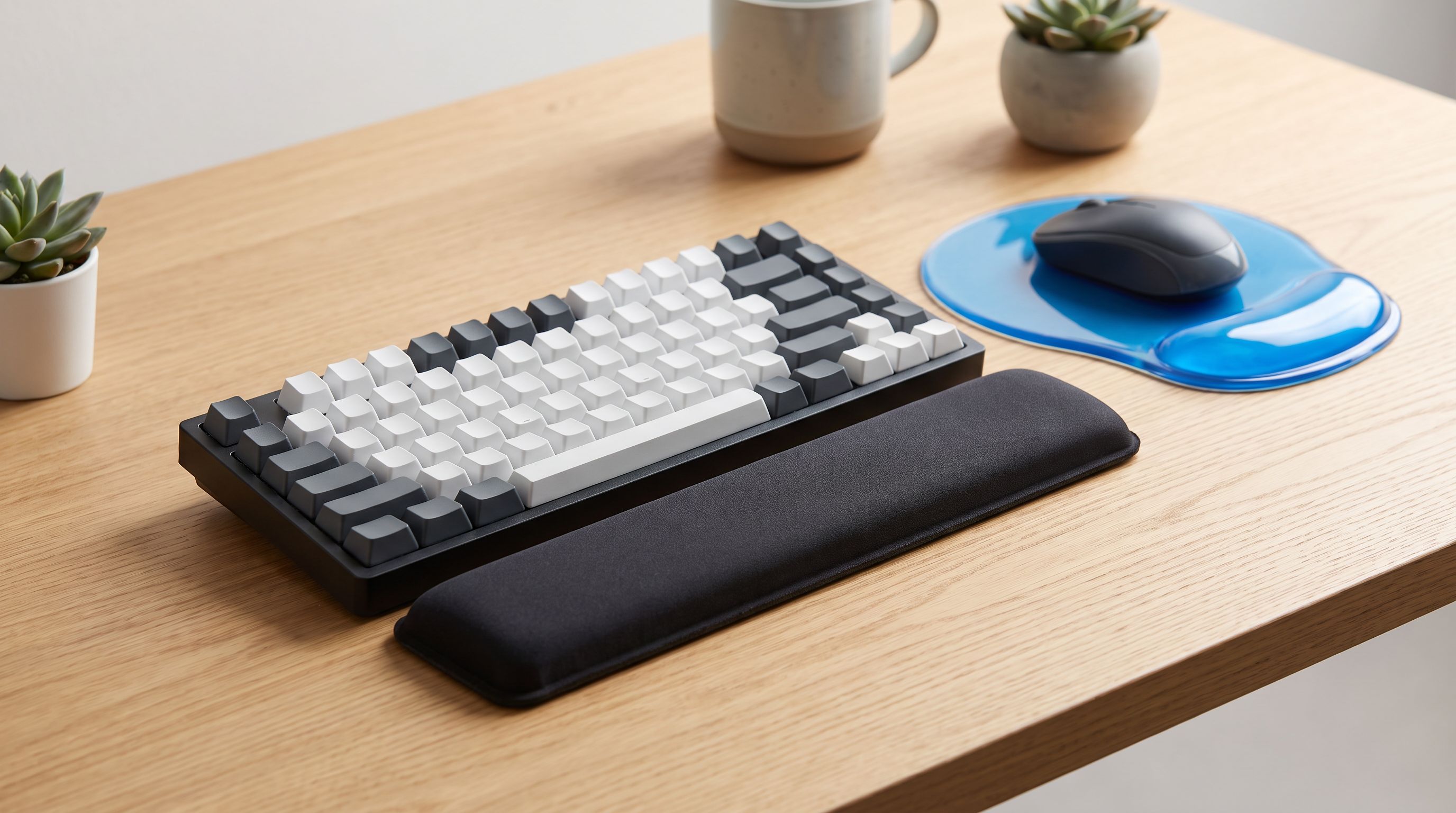
Keyboard Wrist Rest Buying Guide 2026: Height Beats Hype
The best keyboard wrist rest for 2026 depends on height, firmness and board size. We compare memory foam, gel and wooden rests using specs and owner reviews.