KVM-Free Docks in 2026: One Cable, Two Laptops, Zero Fuss
Skip the KVM switch. We compared Thunderbolt and USB-C docks that let two laptops share one monitor, keyboard and mouse — plus what to check before buying.
Reader-supported: we may earn a commission from links on this page, at no extra cost to you. It never affects our picks. Learn more.
If you juggle a work laptop and a personal machine at the same desk, you've probably looked at a KVM switch and winced. They're another box, another power brick, another set of cables — and cheap ones introduce flicker, dropped USB devices and audio that refuses to switch cleanly.
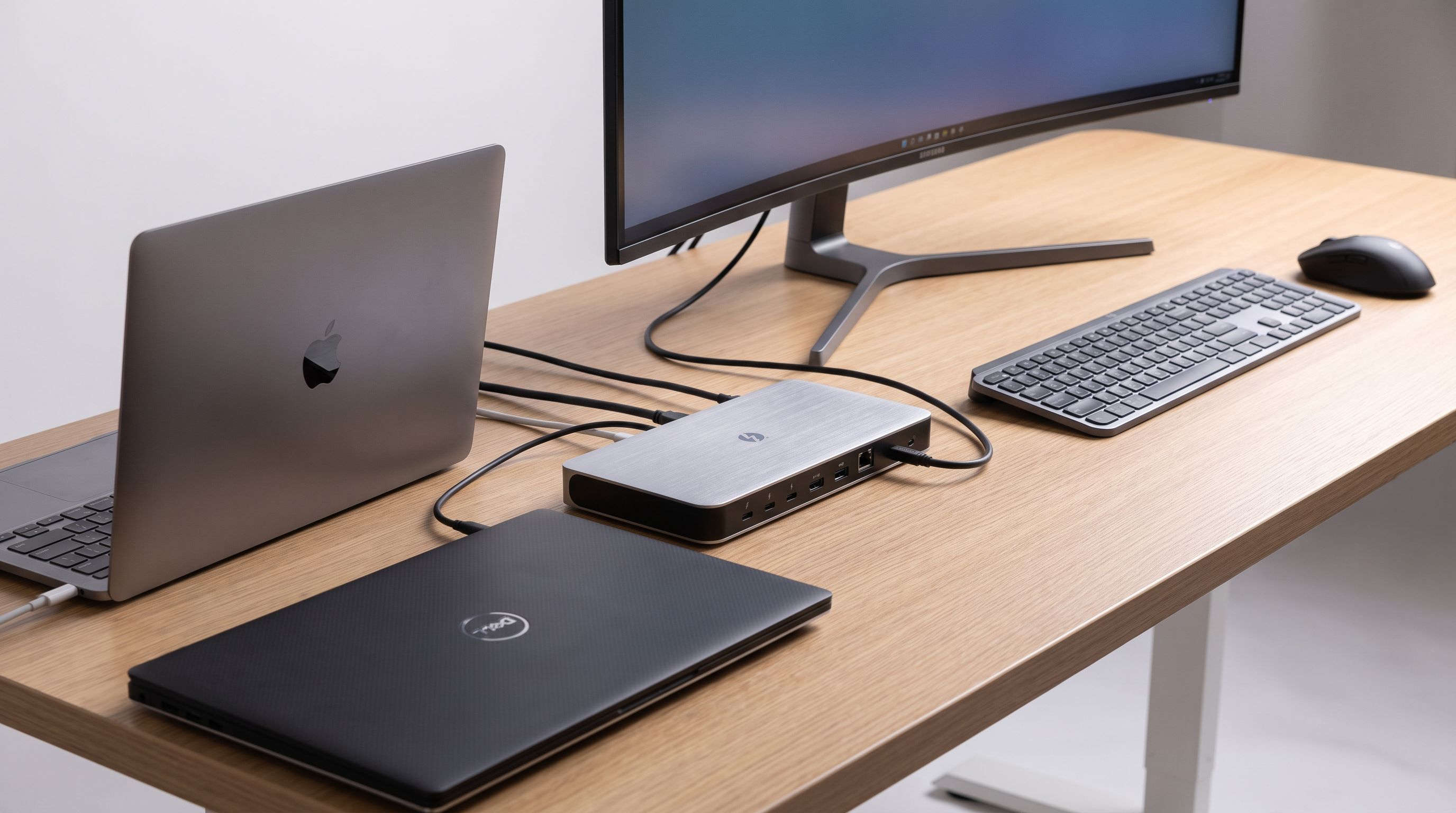
There's a simpler path. A modern Thunderbolt or USB-C dock already contains most of what a KVM does: it aggregates your monitor, keyboard, mouse, Ethernet and audio behind a single cable. Unplug that cable from Laptop A, plug it into Laptop B, and everything follows. No switch, no scan codes, no hotkey chords. That's the "KVM-free" approach, and for the vast majority of two-machine desks it works better than a dedicated switch.
We compared current docks on manufacturer specs, independent reviews and verified owner feedback to figure out which ones handle host swapping gracefully — and which quietly fall apart when you change laptops.
What "KVM-free" actually means
There are three ways to share peripherals between two computers, and it's worth being clear about the trade-offs:
1. One cable, swapped by hand. A single dock, one Thunderbolt/USB-C cable, and you physically move it. Zero compatibility risk, near-instant, and it's how most people should do it. The only downside is a cable you touch a few times a day — a magnetic cable holder on the desk edge fixes 90% of the annoyance.
2. A dock with a built-in host switch. Some docks have two upstream ports and a button. These are rarer than product listings suggest, and behaviour varies a lot by model, so verify the spec sheet rather than the marketing copy.
3. A true KVM. Necessary if you need a genuinely instant switch, if one machine is a desktop that never moves, or if you're switching between more than two hosts. Otherwise it's extra hardware solving a problem a dock already solves.
This guide focuses on option 1, because it's the most reliable and the cheapest overall.
What to look for in a dock you'll be swapping between laptops
Thunderbolt 4 vs USB-C vs DisplayLink
Thunderbolt 4 / USB4 is the cleanest option if both machines support it. You get guaranteed 40Gbps bandwidth, native dual 4K60 display support on Windows, PCIe tunnelling for fast SSD enclosures, and — crucially — proper hot-plug behaviour. Displays wake up, USB devices re-enumerate, and you're working within a few seconds.
Plain USB-C (DP Alt Mode) works fine for a single external display and basic peripherals, and it's much cheaper. The catch is that Alt Mode borrows display lanes from the USB connection, so bandwidth is finite. Some laptops only expose a single display stream over USB-C, which caps you at one monitor.
DisplayLink docks compress video and send it over regular USB, which sidesteps host limitations entirely. That's why a DisplayLink dock is often the answer for Apple Silicon MacBook Air users who want two external displays, or for older laptops with a single-stream USB-C port. The trade-off is a driver requirement and a small CPU overhead — fine for spreadsheets and code, less ideal for full-screen video or gaming.
Power delivery matters more than port count
Check the dock's laptop charging wattage, not its total power budget. A 14-inch ultrabook is happy with 65W; a 16-inch workstation-class laptop under load will slowly drain even on 90W. If your two machines have different needs, size for the hungrier one.
The boring stuff that decides whether you like it daily
- A long enough host cable. A 0.8m cable is fine if the dock sits next to the laptop; a 2m Thunderbolt cable costs more but gives you real placement freedom.
- Front-facing ports. You will plug in a USB stick or headphones. Having to reach behind the dock every time gets old fast.
- Ethernet. Underrated. It removes an entire class of Wi-Fi flakiness and makes both machines behave identically on the network.
- Firmware updates. Docks are computers. Brands that ship regular firmware — CalDigit, Kensington, Dell, Plugable — tend to age far better than no-name units.
The docks we'd actually buy
The CalDigit TS4 remains the reference point. It has the widest port selection of any mainstream Thunderbolt 4 dock — including 2.5GbE, multiple downstream Thunderbolt ports, SD and microSD readers and separate audio in/out — and it delivers up to 98W to a connected laptop. Reviewers and long-term owners consistently praise its stability across host swaps, which is exactly what you want when you're unplugging it twice a day. The external power brick is large, and it's a premium product, but it's the one that stops you thinking about your dock.
If your priority is two monitors with minimal drama, the Kensington SD5780T is a tidier fit. It's built around dual 4K60 output with up to 96W of laptop power, and Kensington's business-focused firmware support is a genuine plus if the dock will be shared between a corporate machine and a personal one.
For mixed fleets — say a MacBook Air and a Windows laptop with only USB-C 3.2 — the Plugable UD-6950PDZ is the pragmatic answer. Because it uses DisplayLink, it can drive dual displays from hosts that natively support only one, and it exposes both HDMI and DisplayPort so you don't need adapters. Install the driver on both machines once and it behaves consistently.
The Anker 568 USB-C Docking Station is the value option. Eleven ports, 100W pass-through charging and dual display support cover the realistic needs of a hybrid worker without Thunderbolt pricing. If neither of your laptops has Thunderbolt, you're not losing anything by choosing it.
 Best value · Anker 568 USB-C Docking Station (11-in-1) — Check price on Amazon →
Finally, if one of your machines is a company-issued Dell, Lenovo or HP notebook, the Dell WD22TB4 is worth the extra consideration. Enterprise docks support features IT departments care about — MAC address pass-through, PXE boot, managed firmware — and the WD22TB4 pushes up to 130W, enough for larger business laptops that starve on 90W docks.
Comparison
| Dock | Connection | Laptop charging | Display support | Best for |
|---|---|---|---|---|
| CalDigit TS4 | Thunderbolt 4 | Up to 98W | Dual 4K (host-dependent) | Maximum ports, one-cable desk |
| Kensington SD5780T | Thunderbolt 4 | Up to 96W | Dual 4K60 | Clean two-monitor setups |
| Plugable UD-6950PDZ | USB-C (DisplayLink) | Pass-through charging | Dual HDMI + DisplayPort | Macs and single-stream USB-C laptops |
| Anker 568 (11-in-1) | USB-C | Up to 100W pass-through | Dual display | Budget-conscious hybrid workers |
| Dell WD22TB4 | Thunderbolt 4 | Up to 130W | Dual/triple (host-dependent) | Corporate Windows laptops |
 Best for corporate laptops · Dell WD22TB4 Thunderbolt 4 Dock — Check price on Amazon →
 Best for dual monitors · Kensington SD5780T Thunderbolt 4 Dual 4K Dock — Check price on Amazon →
 Best overall · CalDigit TS4 Thunderbolt 4 Dock — Check price on Amazon →
Display capabilities depend heavily on your laptop's GPU and port implementation — check your machine's spec sheet before assuming triple 4K.
Making the swap painless
A few habits turn a swapped cable from a chore into a non-event:
- Mount the cable. A magnetic cable clip at the desk edge means the connector is always in the same place.
- Match your monitor input. If both laptops feed the same dock, the monitor never changes input — one less thing to switch.
- Use a wired keyboard and mouse into the dock, or a single USB receiver plugged into the dock. Bluetooth peripherals paired to two hosts add a re-pairing delay that defeats the point.
- Give each machine its own audio device. Plugging speakers into the dock's audio out means both laptops see the same output and remember the same volume.
FAQ
Can a dock really replace a KVM switch? For two laptops sharing one desk, yes. The dock aggregates everything behind one cable; you just move that cable. You give up instant hotkey switching, but you gain reliability and one less device on the desk.
Do all Thunderbolt 4 docks have a built-in switch button? No — most have a single upstream host port. Docks with genuine dual-host switching exist but are uncommon, so read the spec sheet carefully rather than trusting a listing that uses the word "KVM" loosely.
Will a Thunderbolt dock work with a plain USB-C laptop? Usually, but in a reduced mode: expect single-display output and lower bandwidth. If neither laptop has Thunderbolt, save money with a USB-C or DisplayLink dock instead.
Why won't my MacBook Air drive two monitors from a Thunderbolt dock? Base Apple Silicon chips limit the number of external displays regardless of dock. A DisplayLink dock like the Plugable UD-6950PDZ works around this by compressing video over USB.
Is Ethernet worth it if I have good Wi-Fi? It's one of the best reasons to own a dock. Wired networking removes latency spikes on calls and makes both laptops behave identically the moment they're plugged in.
Our picks
CalDigit TS4 18 Port Thunderbolt 4 Dock, 98W Charging, 3X TBT4 (40Gb/s), 3X USB-C + 5X USB-A (10Gb/s), 2.5GbE LAN, 8K@30Hz or 2X 6K@60Hz Displays, Mac/Windows/Chrome, Space Gray, 0.8m Certified Cable
18 ports, 98W laptop charging and rock-solid Thunderbolt 4 host switching for a one-cable desk.
Kensington SD5780T Thunderbolt 4 Dual 4K Docking Station with up to 100W Power Delivery & SD Card Reader, HDMI & Thunderbolt 4 Ports for Windows and MacBooks (K33040NA)
Dual 4K60 via Thunderbolt/DisplayPort with 96W charging — a clean two-screen setup without adapters.

Plugable Dual DisplayPort & HDMI Docking Station - USB 3.0 & USB-C Laptop Dock for Dual Monitors, DisplayLink, Mac (Driver Required), ChromeOS & Windows, Gigabit Ethernet and Audio (UD-6950Z)
DisplayLink-based, so it drives dual HDMI/DisplayPort outputs from Macs and older USB-C laptops alike.
Anker USB-C Hub, 11-in-1 Docking Station Dual Monitor with 4K HDMI and DP | 1 USB-C and 1 USB-A 10Gbps Data Ports, 2 USB 2.0 Data Ports, 4K HDMI and DisplayPort, 85W Max PD, Ethernet, for XPS and More
Eleven ports, 100W pass-through charging and dual display support at a mainstream price.
Dell Thunderbolt WD22TB4 4 Dock 130W
Enterprise-grade firmware, MAC address pass-through and up to 130W power for business notebooks.
Get the best tech deals in your inbox
Join the BytePlaza newsletter for hand-picked gadget deals and new buying guides. No spam, unsubscribe anytime.
Related reads
Best USB-C Docking Station 2026: Dual-Monitor Picks
The best USB-C docking station for dual monitors in 2026, plus a plain-English guide to Thunderbolt 4, USB4, DisplayLink and USB-C DP Alt Mode docks.
Portable Document Scanner 2026: Sheetfed vs Wand, Settled
Digitizing paperwork at home? We compare the best portable document scanner picks for 2026 on speed, duplex scanning, OCR software and cloud workflows.
Standing Desk Converter 2026: Which Riser Fits Your Desk?
Standing desk converter 2026 guide: compare electric vs Z-lift vs X-lift risers by footprint, weight capacity, and desk depth so you buy one that actually fits.