Best Webcam for Dual Monitors in 2026: Mounts, FOV & More
Finding the best webcam for dual monitors in 2026? We compare mount styles, field of view, and auto-framing to help you pick the right camera for multi-screen setups.
Reader-supported: we may earn a commission from links on this page, at no extra cost to you. It never affects our picks. Learn more.
Why Dual-Monitor Setups Need a Different Webcam
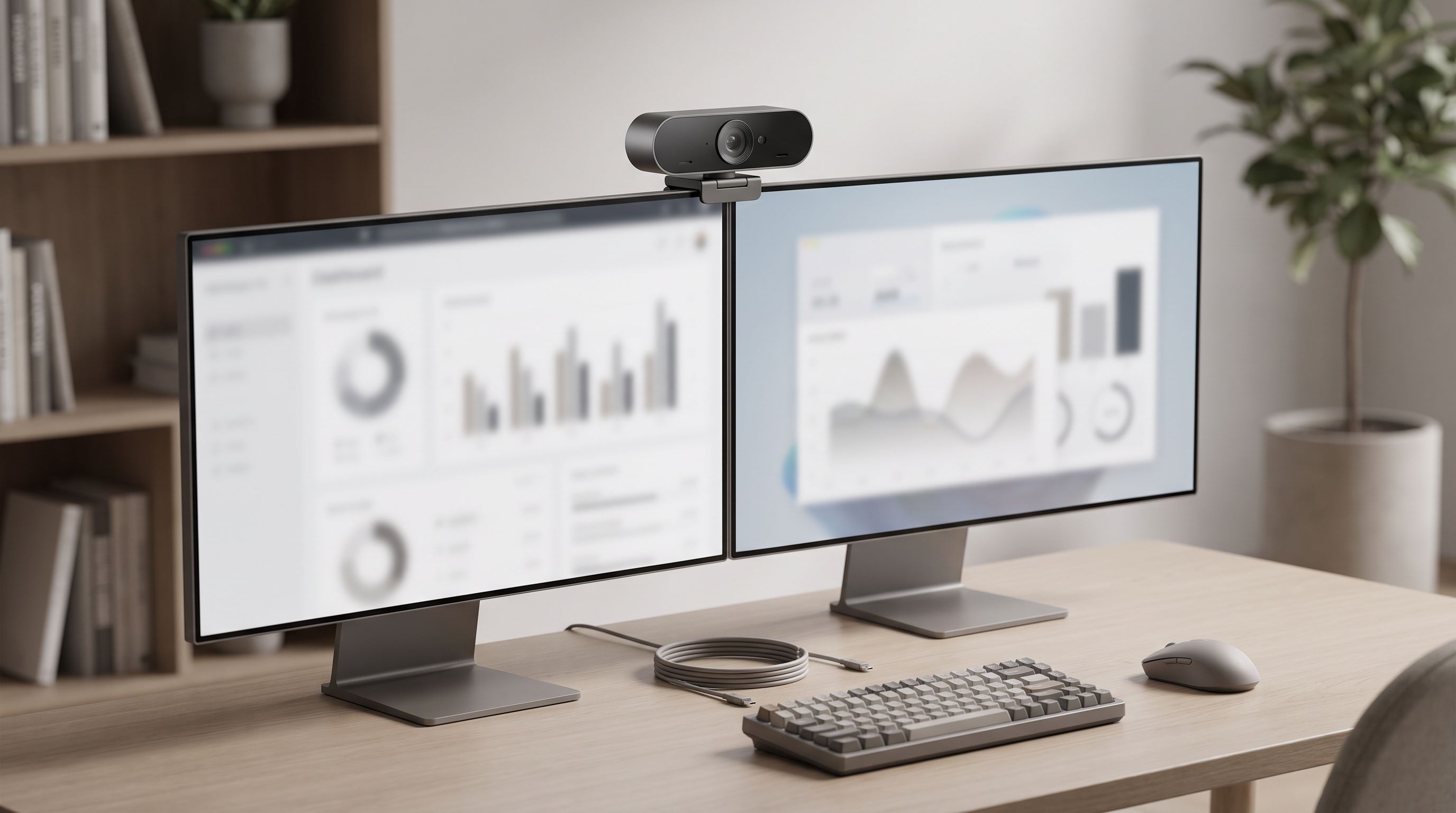
If you've ever hopped on a video call from a dual-monitor desk, you know the struggle: the webcam sits on one screen, but you're looking at the other. The result is awkward eye contact, an off-center angle, or a framing that makes you look like you're staring into the distance. The fix isn't just "buy a better webcam"—it's buying the right webcam with the mount flexibility, field of view, and smart framing features that actually work across two screens.
We researched dozens of models, compared specs, consulted expert reviews, and gathered owner feedback to find the webcams that solve these exact problems in 2026.
What to Look For
Mount Style and Placement Flexibility
The single most important factor for a dual-monitor webcam is where you can physically put it. You have three main options:
- Center-mount between monitors: Requires a tripod or desk-mount arm. Best for eye contact since it sits at your natural gaze point.
- Top-of-monitor clip: The standard approach, but on dual monitors it means the camera sits off-center unless you clip it to the inner bezel edge.
- Standalone desk tripod: Many webcams include a small tripod or have a standard ¼"-20 thread for third-party mounts.
Look for a webcam with a universal clip that can handle thin bezels (common on modern monitors) and a tripod thread so you have options.
Field of View (FOV)
A wider FOV (78°–90°) is more forgiving for dual-monitor desks. If the camera is slightly off-center, a wider lens still captures you cleanly without cropping half your face. Anything narrower than 70° starts to feel tight if the webcam isn't perfectly aligned.
Auto-Framing and AI Tracking
AI-powered auto-framing digitally crops and recenters on your face in real time. This is a game-changer for dual monitors because even if the camera is mounted to one side, the software keeps you centered in the frame. Models with gimbal-based tracking (like the Obsbot Tiny 3) physically rotate to follow you—even better for people who shift between screens frequently.
 Best auto-framing · Obsbot Tiny 3 — Check price on Amazon →
Resolution and Low-Light Performance
4K is now mainstream in webcams, but 1080p at a high frame rate still looks great for most video calls. What matters more for dual-monitor users is low-light handling, since many home offices have overhead lighting that creates shadows when you're angled away from the camera.
Our Top Picks Compared
| Webcam | Resolution | FOV | Auto-Framing | Mount Type | Best For |
|---|---|---|---|---|---|
| Logitech Brio 505 | 1080p/30fps | 78° | Yes (Show Mode) | Monitor clip + tripod thread | Overall dual-monitor use |
| Obsbot Tiny 3 | 4K/30fps | Up to 86° | Yes (AI gimbal tracking) | Magnetic base + tripod thread | Active movers & presenters |
| Dell Pro 7 Webcam 4K | 4K/60fps | 90° | Yes (AI framing) | Monitor clip + tripod thread | Wide desks & 4K quality |
| Elgato Facecam 4K | 4K/30fps | 82° | No (manual via software) | Detachable monitor mount + tripod | Streaming on multi-monitors |
| eMeet Piko+ | 4K/30fps | ~80° | Basic | Compact clip + tripod thread | Budget-friendly 4K |
 Budget pick · eMeet Piko+ — Check price on Amazon →
 Best for streamers · Elgato Facecam 4K — Check price on Amazon →
 Best 4K pick · Dell Pro 7 Webcam 4K — Check price on Amazon →
 Best overall for dual monitors · Logitech Brio 505 — Check price on Amazon →
Detailed Breakdown
Logitech Brio 505 — Best Overall for Dual Monitors
Wirecutter's top webcam pick for 2026, and for good reason in a dual-monitor context. The Brio 505 offers solid 1080p quality, a 78° FOV, and Logitech's "Show Mode" auto-framing that digitally adjusts your position in the frame. Its monitor clip is well-designed for thin modern bezels, and the standard tripod thread means you can center it between monitors on a small tripod. It also works seamlessly with Logitech Sync software, which is a plus if your office already uses Logi peripherals.
The trade-off: it's 1080p, not 4K. For most video calls on Teams, Zoom, or Google Meet, that's perfectly fine—those platforms compress the feed anyway.
Obsbot Tiny 3 — Best Auto-Framing
The Obsbot Tiny 3 is the standout choice if you move around your desk or constantly shift your gaze between monitors. Its two-axis gimbal physically rotates to track your face using AI, so you stay centered no matter which screen you're focused on. At 4K/30fps with strong low-light performance (noted across multiple expert reviews), the image quality is excellent. The magnetic mount base snaps onto a desk stand or tripod, making it easy to position between two monitors.
The gimbal motor is nearly silent, but some owners note a slight whir in very quiet rooms. It's also bulkier than a standard webcam, so factor in desk space.
Dell Pro 7 Webcam 4K — Best 4K Pick
If you want the sharpest image and the widest native field of view, the Dell Pro 7 Webcam 4K delivers 4K at 60fps with a generous 90° FOV. That wide angle is particularly useful for dual-monitor setups where the webcam might be off to one side—the lens captures enough of the scene that you won't be cut off. Dell's built-in AI framing handles recentering, and the 4x digital zoom lets you crop in without losing quality.
It pairs especially well with Dell monitors thanks to Dell Peripheral Manager software, but works with any system.
Elgato Facecam 4K — Best for Streamers
Content creators running OBS across two monitors will appreciate the Elgato Facecam 4K's DSLR-like manual controls (exposure, ISO, white balance all adjustable in Elgato's Camera Hub software). It doesn't have auto-framing, so you'll want to position it carefully—ideally centered between monitors on a tripod. The detachable mount system is sturdy and accommodates various setups. Image quality is among the best in the webcam category, with natural color science that needs minimal post-processing.
eMeet Piko+ — Budget Pick
The eMeet Piko+ punches well above its price class with genuine 4K capture and an ~80° FOV. Its compact clip mount fits narrow bezels without the wobble you get from cheaper webcams. Auto-framing is basic compared to the Obsbot or Dell options, but it works adequately for standard video calls. Multiple reviewers have praised its value proposition, noting 4K quality at a fraction of what premium models cost.
Placement Tips for Dual-Monitor Desks
- Center it if you can. A small desk tripod placed between your two monitors, at eye level, gives the most natural eye contact.
- Inner bezel trick. If you must clip-mount, attach the webcam to the inner edge of your primary monitor—the one you look at most during calls.
- Raise it to eye level. A monitor arm or a few books can bring the webcam to the right height. Looking down into a camera is unflattering and signals disengagement.
- Use software framing. Even a slightly off-center webcam can look centered with AI auto-framing enabled. Check your webcam's companion app for this setting.
FAQ
Can I use any webcam with dual monitors?
Yes, but webcams with wider FOV (78°+), auto-framing, and versatile mounts work significantly better. A narrow-angle camera clipped to the far edge of one monitor will frame you poorly.
Where should I mount a webcam on a dual-monitor setup?
Ideally, centered between both monitors at eye level using a small tripod or desk mount. If that's not possible, clip it to the inner bezel of the monitor you use most during calls.
Does auto-framing replace good webcam placement?
It helps a lot but doesn't fully replace it. AI framing digitally crops the image, which reduces effective resolution. Starting with a good physical position and letting auto-framing make small corrections gives the best result.
Is 4K worth it for video calls?
For most platforms (Zoom, Teams, Meet), calls are compressed to 1080p or lower anyway. 4K matters more for recording, streaming, or if you want headroom for digital cropping—which is actually useful on dual-monitor setups where auto-framing crops frequently.
Do I need a webcam with a built-in microphone?
Most webcams include one, but dual-monitor users often sit farther from the camera than single-monitor users. A dedicated USB microphone or headset will almost always sound better than a webcam mic at arm's length.
Our picks
Logitech Brio 505 Full HD 1080p Webcam for PC with Auto Light Correction
Wide compatibility, auto-framing, and a versatile monitor mount that handles thick and thin bezels.
OBSBOT Tiny 3 AI-Powered Spatial Audio 4K Webcam, AI Tracking PTZ Camera
AI-powered tracking keeps you centered no matter where you sit between two screens.
Dell 4K UHD Webcam WB7022, Sony Sensor, Teams Certified
90° FOV and 4K/60fps deliver a sharp, wide image ideal for ultrawide dual-monitor desks.
Elgato Facecam 4K, 4K60 Studio Webcam, DSLR-Like Control
Premium optics with a detachable mount and DSLR-like controls suit content creators on multi-monitor rigs.
EMEET Piko+ (Piko Plus), World’s 1st Dual-Camera AI-Powered 4K Webcam
Impressive 4K quality at a fraction of the price, with a compact clip that fits narrow bezels.
Get the best tech deals in your inbox
Join the BytePlaza newsletter for hand-picked gadget deals and new buying guides. No spam, unsubscribe anytime.
Related reads
Laser Printers Under $200 in 2026: 5 Picks Ranked by Cost-Per-Page
Looking for the best laser printer under $200 in 2026? We compared monochrome and color models by cost-per-page, connectivity, and features for home offices.
USB-C Laptop Chargers in 2026: 140W+ Picks That Replace Your Brick
Looking for the best USB-C laptop charger in 2026? We compare 140W+ GaN chargers with PD 3.1 support, multi-port designs, and compact builds that replace bulky OEM bricks.
Which Laser Printer Should You Buy for Home Office in 2026?
Looking for the best laser printer for home office in 2026? We compared top mono and color models for hybrid workers who need speed, low cost per page, and compact design.